Your brand already has a voice. Now it can have a podcast.
Mavic now makes AI podcasts from your content. Ask for an episode in chat, read the script, change what you want, and render the audio when it reads right. The video below shows the whole flow in 90 seconds, made for Bloom Skin, a demo brand.
What a podcast in Mavic looks like
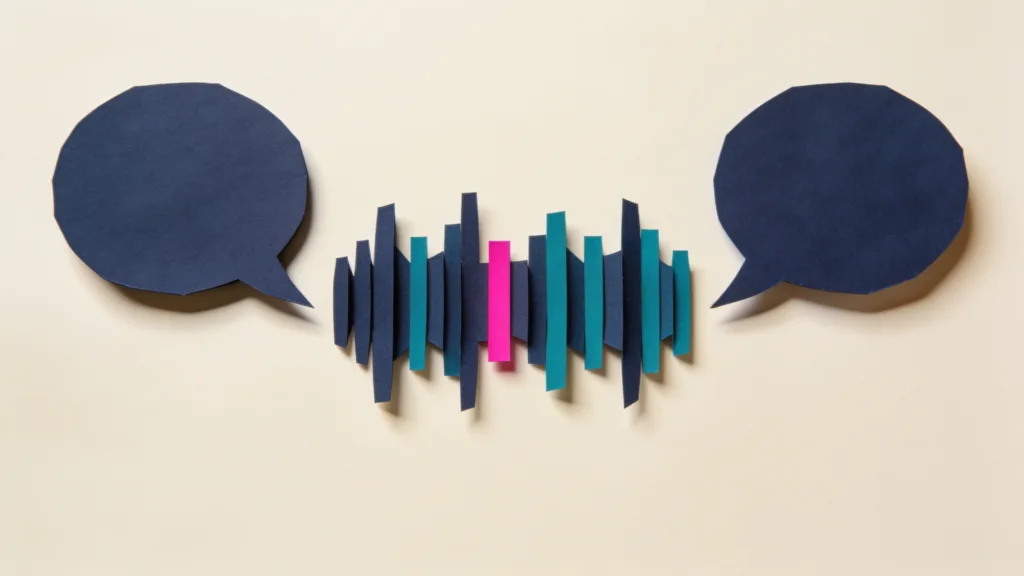
An episode is a short conversation between two hosts. You choose who they are, how they sound and how the talk flows. Mavic writes the script first, and nothing is recorded until you approve it.
Behind the scenes, two specialists do the work: a scriptwriter and a voice creator. Both work from your Brand DNA, like every other part of Mavic.
Once the audio renders, you get a player and a transcript that follows along as it plays. The episode is saved in your Library, next to everything else you make in Mavic.
How to make an episode, in four steps
1. Pick a voice model
Open the model selector in the chat box and go to Voice. In the video we use Gemini TTS, which speaks one or two parts with ready-made voices. You can also leave the selector on Auto and let Mavic choose.
2. Ask for an episode
Say what you want in one line. For example: “Make a one-minute podcast episode with two hosts about building a gentle skincare routine for sensitive skin.”
Mavic shows you the plan and the credits it expects to use before it starts. Click Let’s go when you are ready.
3. Edit the script
The script arrives as a card. Rename the speakers, pick a voice for each, and set the tone and the pace. Rewrite any line, add a turn, move one up or delete it.
Would you rather describe the change? Use Request changes and Mavic revises the script for you.
4. Render and play
When the script reads right, click Approve and Render. The player and the transcript appear in the same card.
If a spoken line drifts from the written one, Mavic flags it, so you know exactly where to listen. From there you can download the audio, add it to a video or revise the episode in chat.
What to make with it
Start with content you already have. A few ideas:
- A blog post, retold as a short conversation between two hosts.
- A product explainer, where one host asks the questions your customers ask.
- A weekly tip in the same two voices, so it sounds like a series.
- A soundtrack for a short video, with Add to video.
What it costs
Mavic shows the credit estimate before the work starts, and again on the Approve and Render button. Writing and editing the script is part of your chat session. The audio is only charged once it renders.
Make it sound like your brand
Podcasts start from the same Brand DNA as everything else in Mavic, so a clearly written voice helps the script sound like you. If yours is not written down yet, our free Brand Voice Workbook walks you through it.
Try it now
Open a new chat in Mavic and ask for an episode. Read it, change it, then press play.