Updated 15 November 2026. First published 15 October 2025.
Instagram changed a lot this year. Recommendations got more controls, originality rules got stricter, and hashtags got a hard cap. None of that makes a setting a growth hack, but a few switches can help the right people find your work. Here are six worth checking before the new year, plus what is new since we first wrote this.
One caution up front: nobody outside Instagram can promise you a number. Treat these as a tidy-up for your account, then judge them by your own Insights.
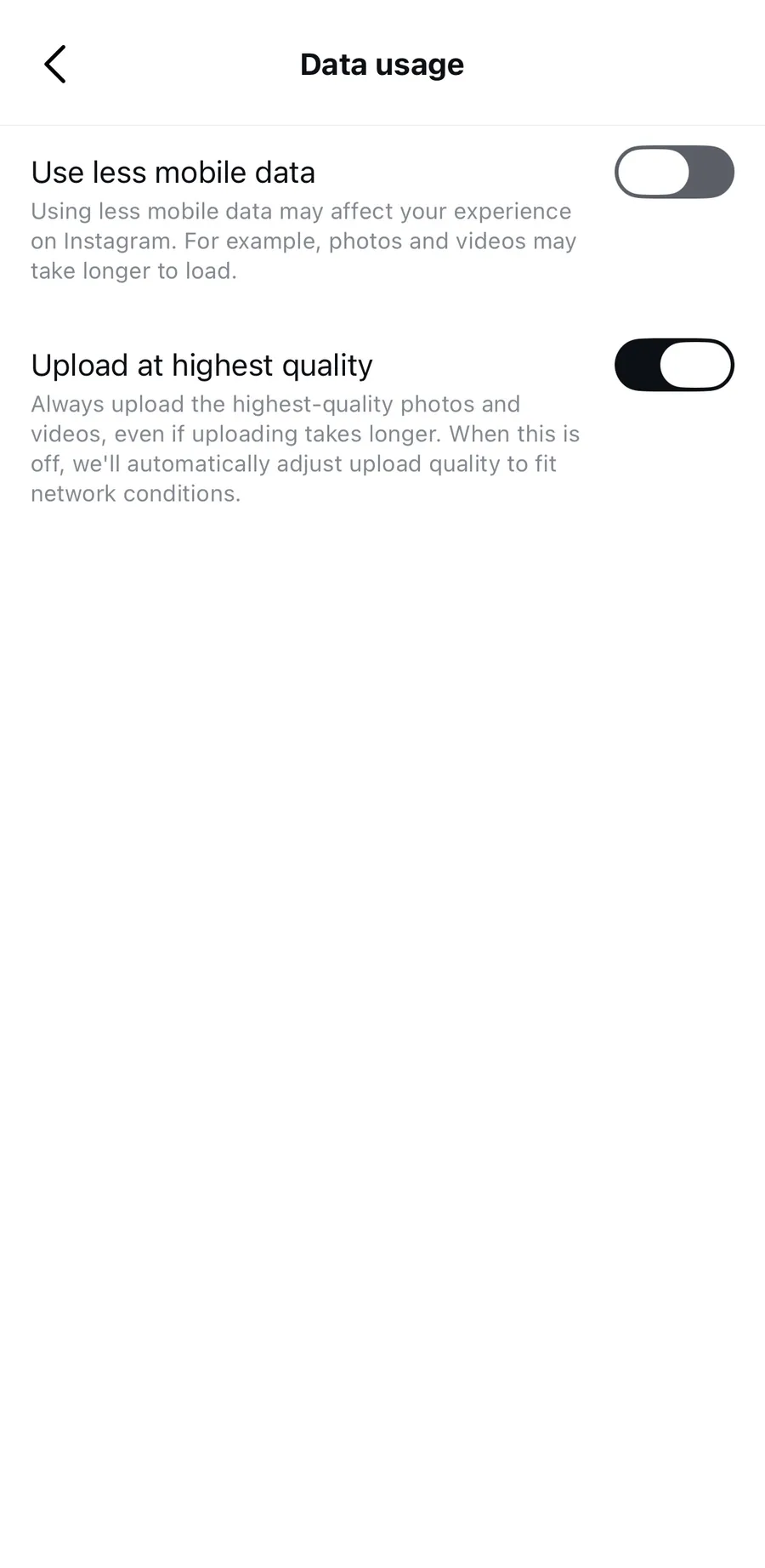
1. Upload at the highest quality
If your photos and videos look soft after posting, check the upload setting first. Instagram’s own creator guidance says to avoid low quality video, so it makes sense to start from the sharpest file you can. When this setting is off, Instagram says it will “automatically adjust upload quality to fit network conditions”.
- Where: Settings, then Your app and media, then Data usage (on some versions this screen is called Media quality). Turn on Upload at highest quality.
- Trade-off: uploads take longer and use more data, so do it on Wi-Fi.
2. Let search engines show your public posts
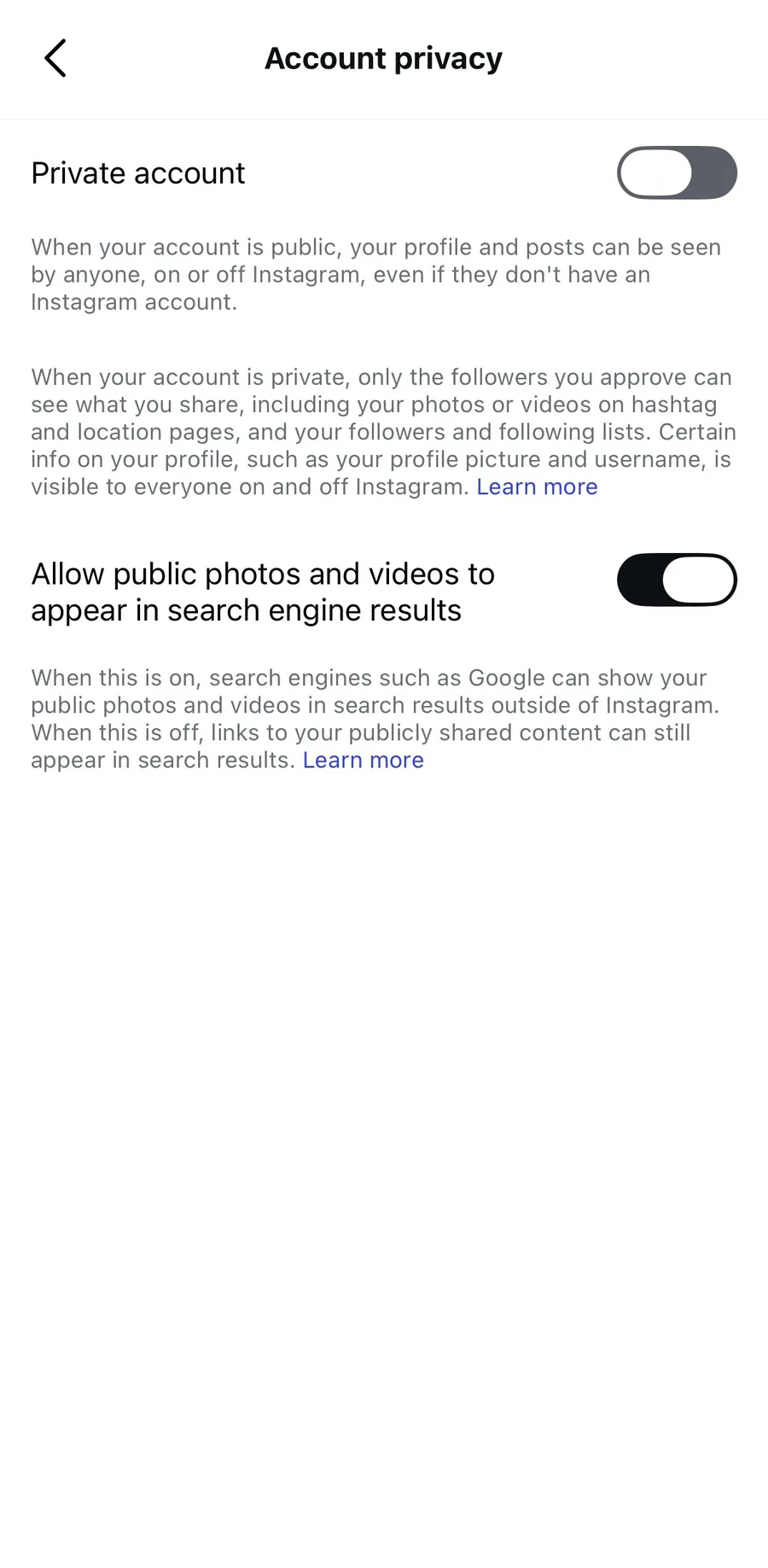
In July 2025, Instagram began letting Google and Bing show public posts from professional accounts, according to reports at the time. Personal accounts don’t get this option: on a personal account the Account privacy screen only has the Private account switch.
- Where: Settings, then Account privacy, then Allow public photos and videos to appear in search engine results.
- What Instagram says: when it is on, search engines such as Google can show your public photos and videos in search results outside of Instagram. When it is off, links to your publicly shared content can still appear in search results.
- Make it count: Instagram’s creator guidance says to put keywords in your handle, bio and captions, not in comments. Write captions the way a customer would search.
3. Use a professional account, and keep it public
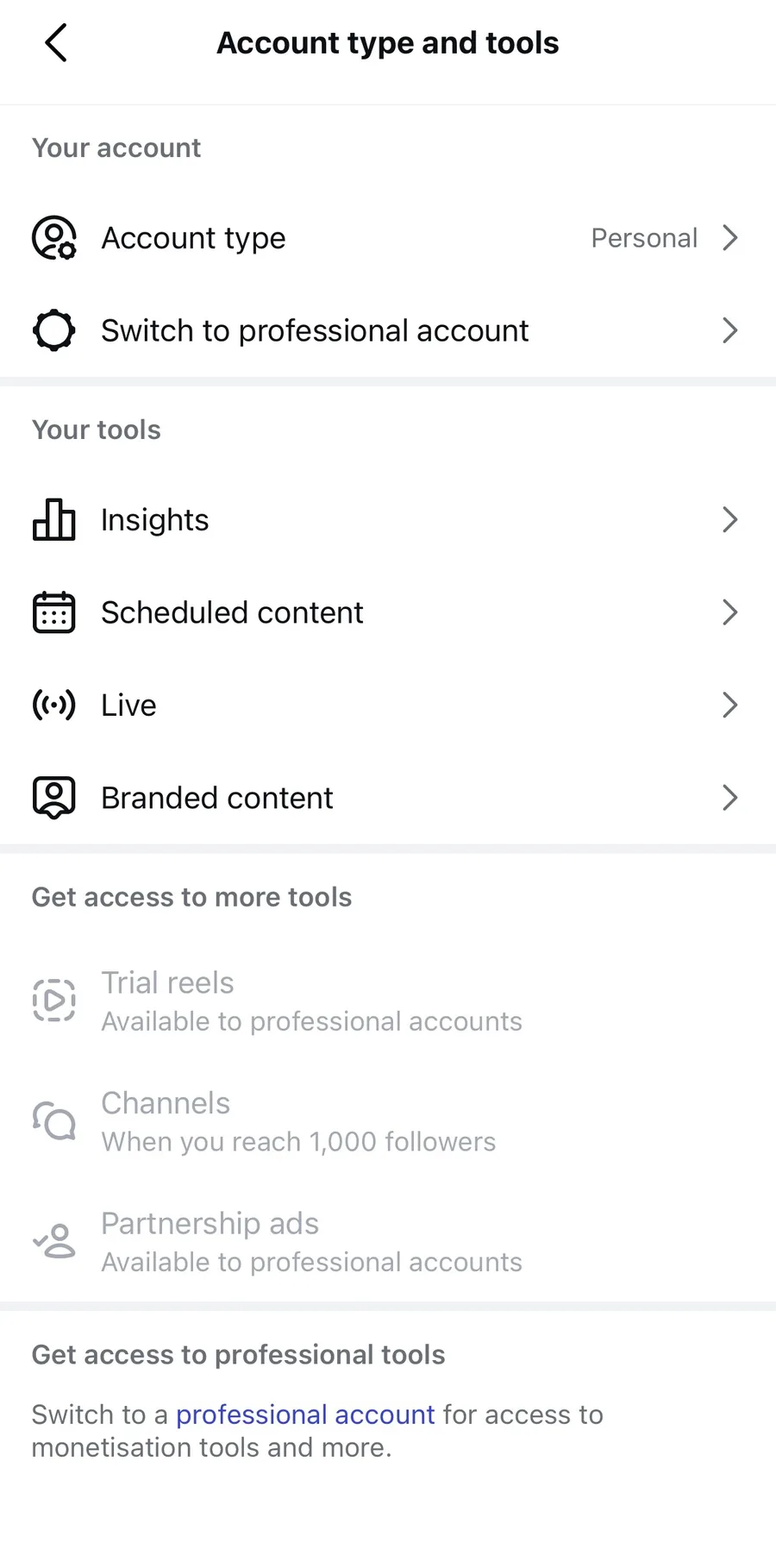
Instagram’s guidance for reach says to keep your account public, and notes that Creator and Business accounts are public by default. A professional account also gives you Insights, including a split of reach between followers and non-followers, which is the number to watch if you want to know whether anyone new is finding you. It also unlocks tools that a personal account shows greyed out, such as Trial reels and Partnership ads.
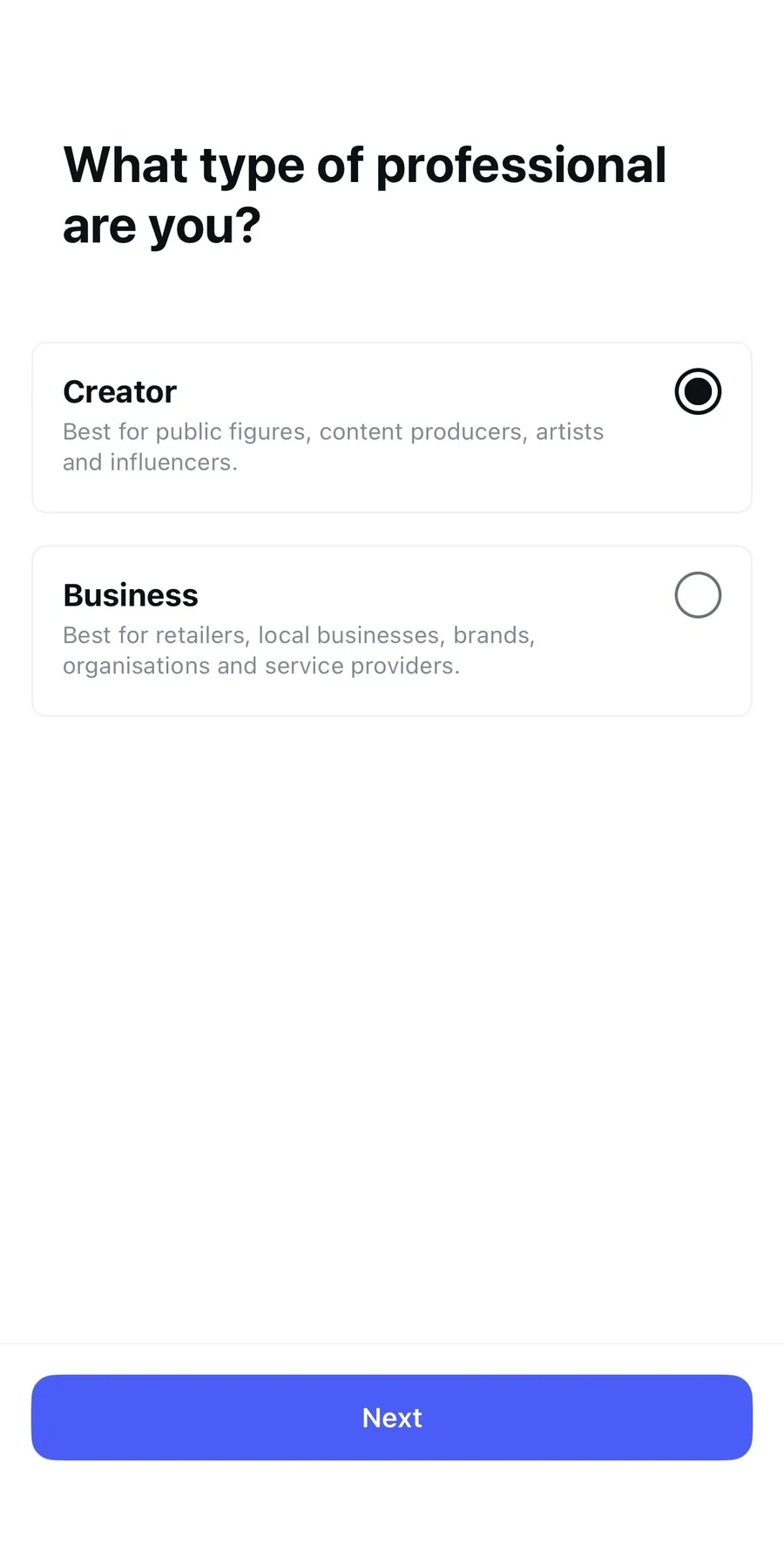
- Where: Settings, then Account type and tools, then Switch to professional account, then choose Creator or Business.
- Creator or Business? Instagram suggests Creator for public figures, content producers, artists and influencers, and Business for retailers, local businesses, brands, organisations and service providers.
4. Check Account Status
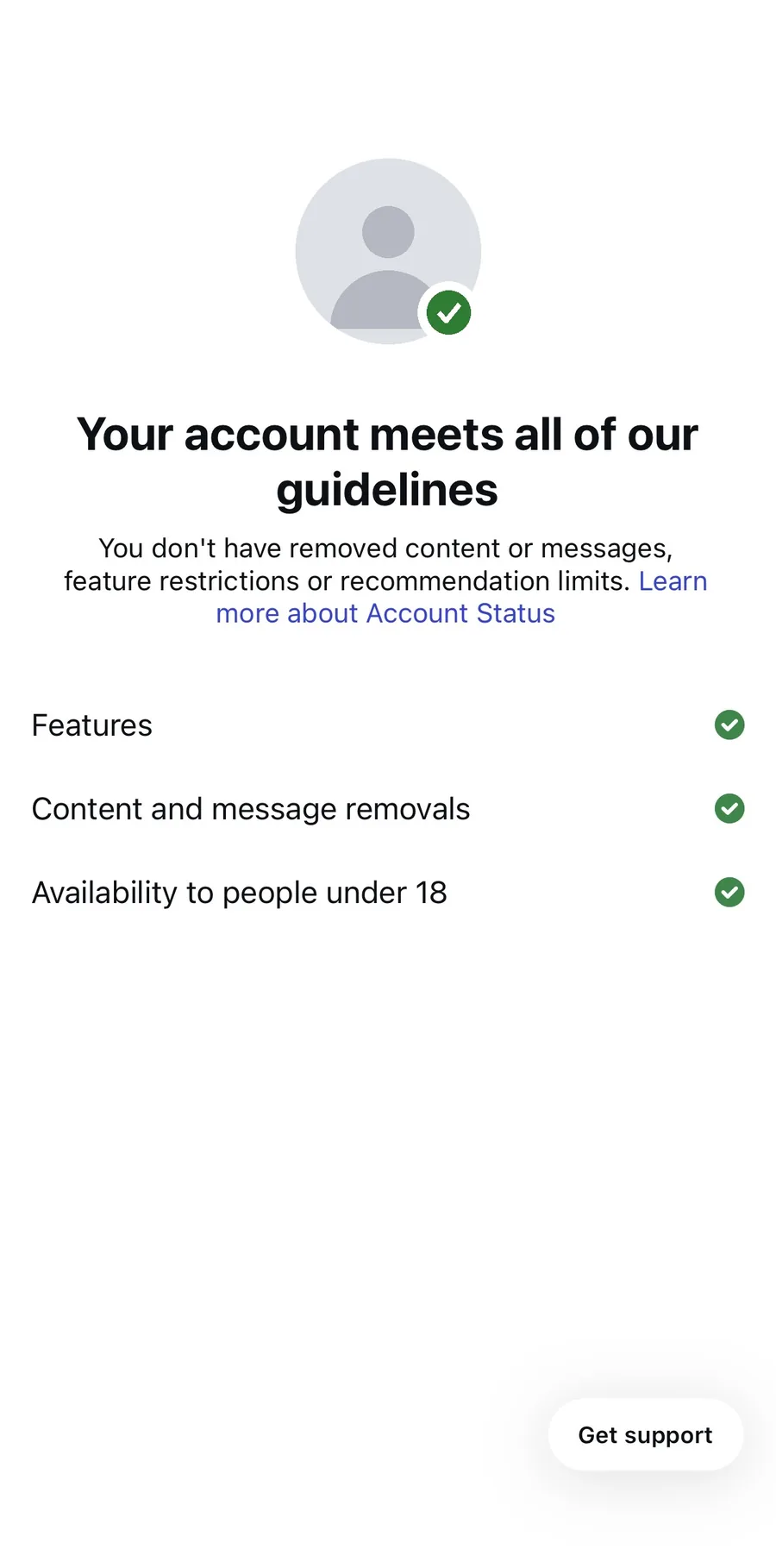
This one is new in this update. Account Status shows whether your account and content are eligible to be recommended to people who don’t follow you. If something is flagged, you can edit or delete it, or ask for a review if you think it was a mistake. It is worth a look once a month, and after any post that suddenly underperforms.
- Where: Settings, then More info and support, then Account Status. A professional account lists Removed content and messaging issues, Limits to your reach, and Features you can’t use. A personal account’s screen lists Features, Content and message removals, and Availability to people under 18.
- Why now: on 30 April 2026 Instagram said it would stop recommending accounts that regularly repost others’ content, extending protections Reels already had to photos and carousels. Followers still see those accounts in their feeds. Instagram did not publish a threshold, and it says watermarks, speed changes and screenshots of someone else’s post do not count as original (TechCrunch, 30 April 2026).
5. Turn on cross-posting where your audience is
Sharing the same post to Facebook and Threads saves you a step, and it can put your work in front of people who don’t use Instagram. We removed the old “20 to 30% extra reach” claim from this post, because we couldn’t find a source for it.
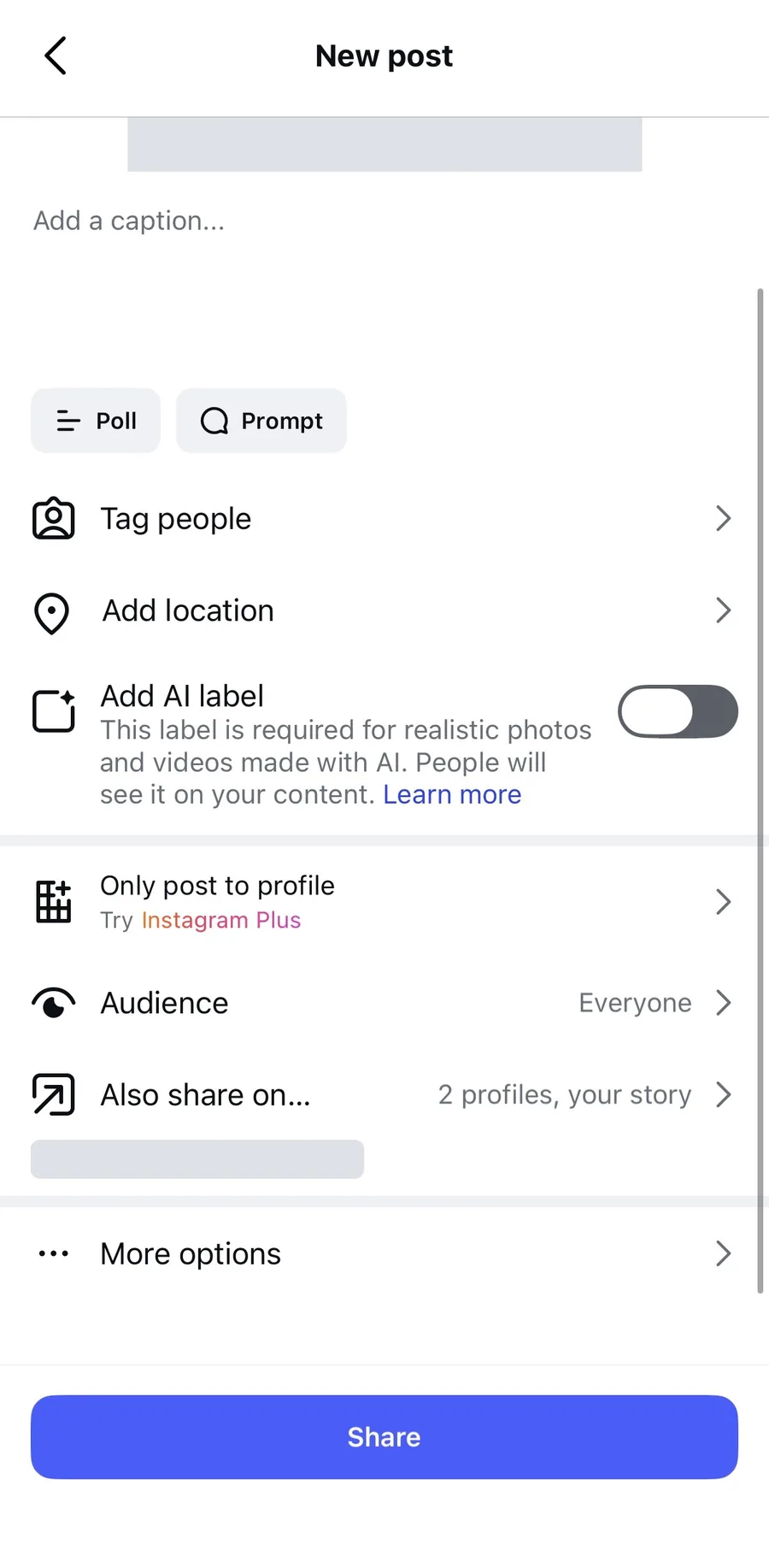
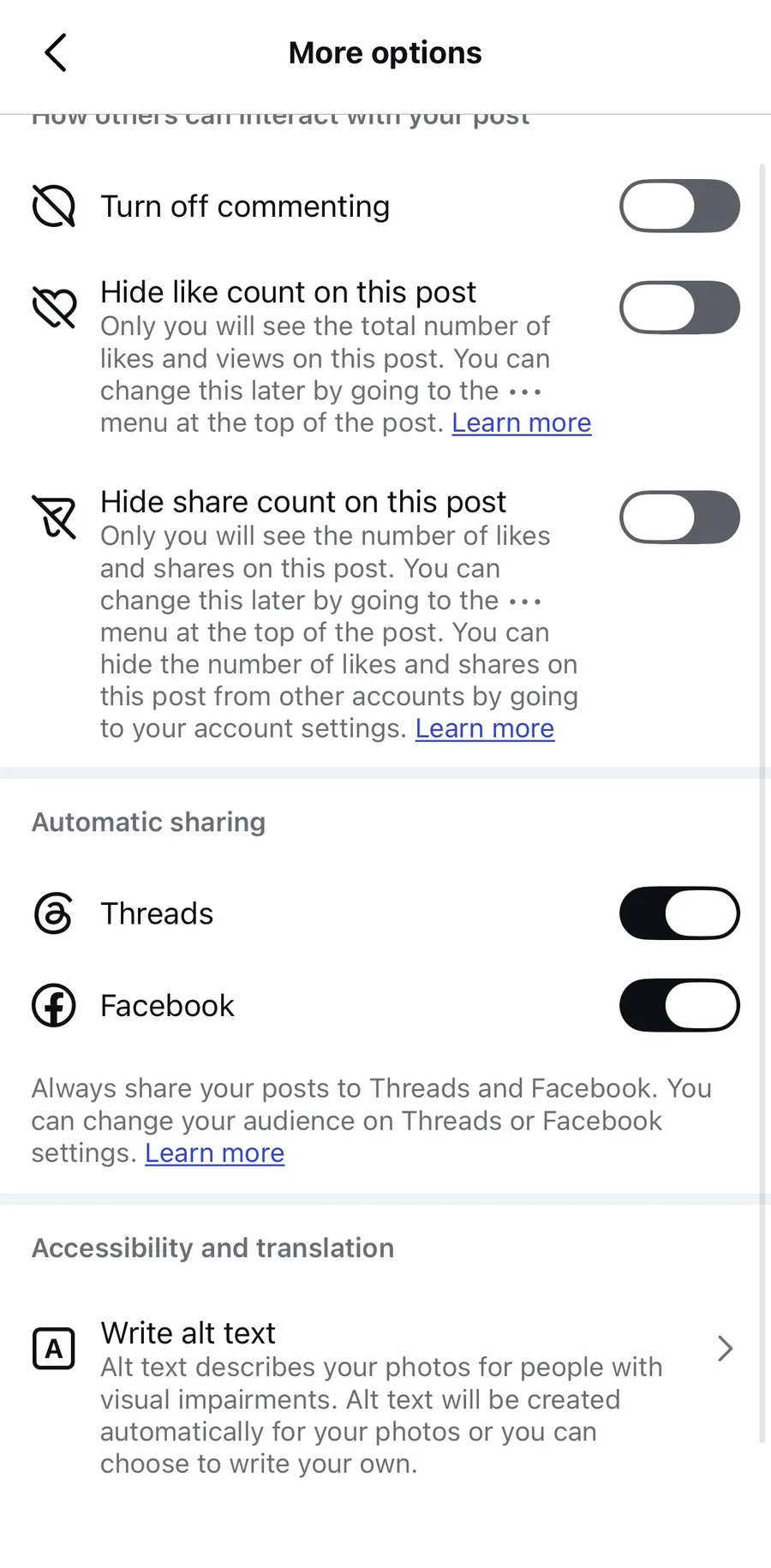
- Where: when you post, open New post, then More options, then Automatic sharing, and switch on Threads and Facebook. Instagram describes it as “Always share your posts to Threads and Facebook”. The New post screen also has an Also share on row for choosing profiles one post at a time.
- New in 2026: according to update trackers, Instagram now shows likes from Threads on a post you shared there (February), and Stories using the Add Yours sticker can be cross-posted to Facebook (July).
- Still write for each place. A caption that works on Instagram may read oddly on Threads.
6. Set your category and tune Your algorithm
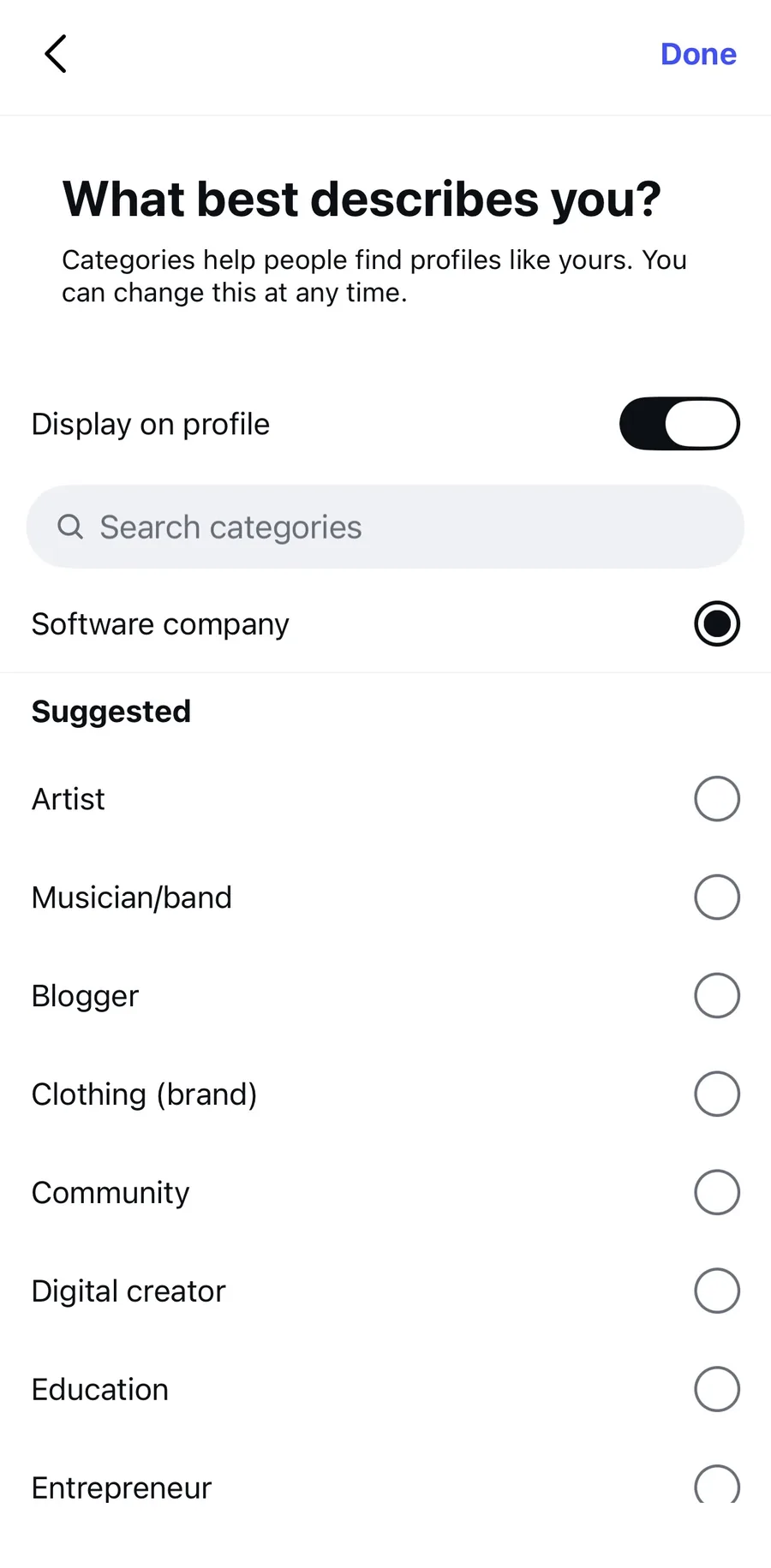
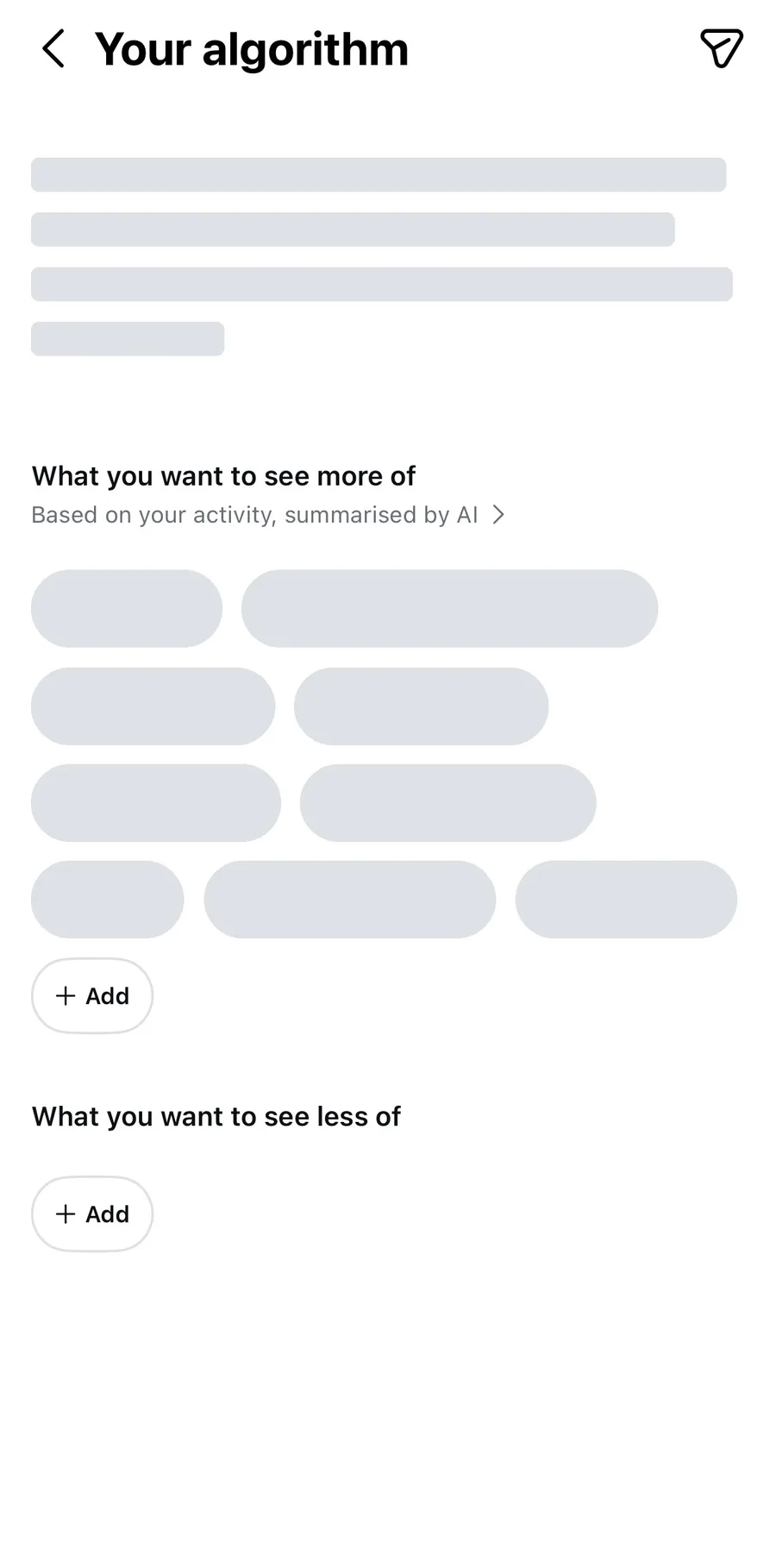
Two small settings that help Instagram understand who your content is for. First, your profile category. Instagram says categories help people find profiles like yours, and you can change yours at any time. Choose the one that describes what you do, and decide whether to display it on your profile. Second, Your algorithm lets you tell Instagram which topics you want to see more or less of. According to update trackers, it reached Reels in January 2026, Explore in April and the main feed in June. Using it on your own account is a quick way to see your niche from the viewer’s side.
- Category: on the web, Settings, then Professional account, then Category. In the app the screen is titled What best describes you?
- Your algorithm: open it in the app, then add or remove topics under What you want to see more of and What you want to see less of.
Quick wins that still hold
- Hashtags: five at most. Instagram capped posts and Reels at five hashtags in December 2025, according to creator-industry reports, and extras are ignored. Use a few specific ones.
- Add alt text. It describes your photos for people with visual impairments. Instagram creates it automatically for your photos, or you can write your own: New post, then More options, then Write alt text.
- Try Trial Reels. They let you test a Reel with non-followers first, and they are available to professional accounts only. Instagram has also reportedly limited how many you can post in a 30 day window.
- Keep a rhythm you can maintain. A steady schedule beats a burst you can’t keep up.
Common mistakes
- Reposting without adding anything. This is now the clearest thing to avoid. Make your own photos, videos and designs, or add real commentary or editing to what you share.
- Leaving the account private while hoping strangers find it.
- Skipping alt text and keyword-rich captions.
- Ignoring Insights from a professional account. Check them for trends over a few weeks, not one post.
- Treating settings as a strategy. They remove friction. They don’t replace posts people want to send to a friend.
Where Mavic fits
Checking six Instagram settings every quarter is easy to forget when you are busy making content. Mavic doesn’t change your Instagram account settings or remind you to check them. What it can help with is the work that comes after the switches: content, creative, formatting and publishing. After a one-time secure connection to your accounts, Mavic can help you:
- Create on-brand content at scale. Turn an idea into caption variations, post copy and campaign themes that match your voice.
- Generate visuals and video assets. Produce on-brand images, thumbnails, product mockups and short videos ready to publish.
- Generate SEO-ready assets. Alt text, keyword-rich captions and hashtag groups are suggested so posts are easier to find.
- Prepare media for each platform. Resize and format images and videos to platform specs.
- Schedule and cross-publish. Queue posts and publish to Instagram, Facebook and Threads from a single dashboard, with platform-specific tweaks.
- Keep teams on brand. Roles, approvals and campaign templates let teams scale without losing their voice.
That leaves you with polished content and a posting plan, so you can spend your time creating instead of toggling Instagram settings.
The short version
Check six things this week: upload quality, search visibility, a public professional account, Account Status, cross-posting and your category. Then make something original. We’ll refresh this post again when Instagram changes the menus. For more on how search works on Instagram, read our guide to Instagram’s search update.